Mark the moment.
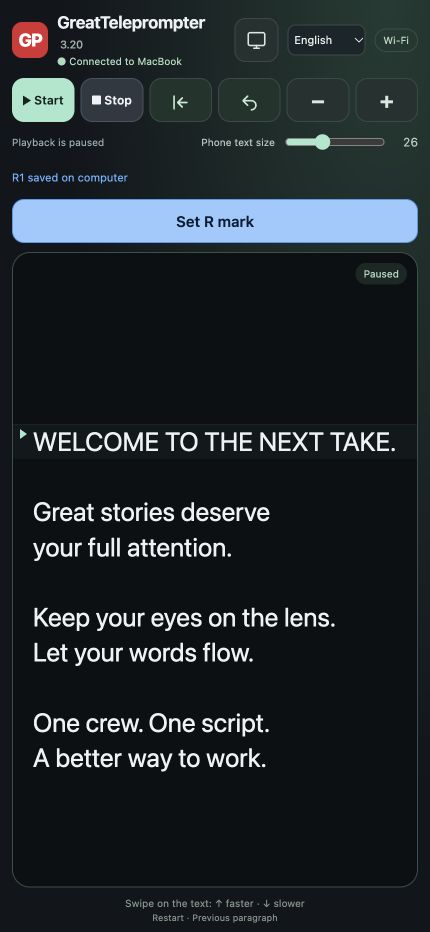
Red M marks at the Mac cursor. Blue R marks at the reading position from the phone. Add an optional note to an R mark. Export a marked script for the next stage of the production.
BUILT BY THE PEOPLE WHO SHOOT.
The teleprompter we wanted on our own productions. A focused Mac workspace, a clean Presenter screen, and an iPhone remote that puts the pace in the photographer’s hand.
Mac app · Apple Silicon · macOS 13+ · Six interface languages
28 seconds inside GreatTeleprompter. Real Mac interface, real scrolling and the controls you will use on set.
Recorded in the actual Mac app · English example interface · No soundtrack
The presenter shouldn’t have to wait for the operator. The photographer shouldn’t have to call across the room to change the pace. And a last-minute edit shouldn’t become part of the performance.
We made GreatTeleprompter around those moments. Developed by television professionals at Great Dane, for the studio, location shoots, ENG and the next unexpected change of plan.
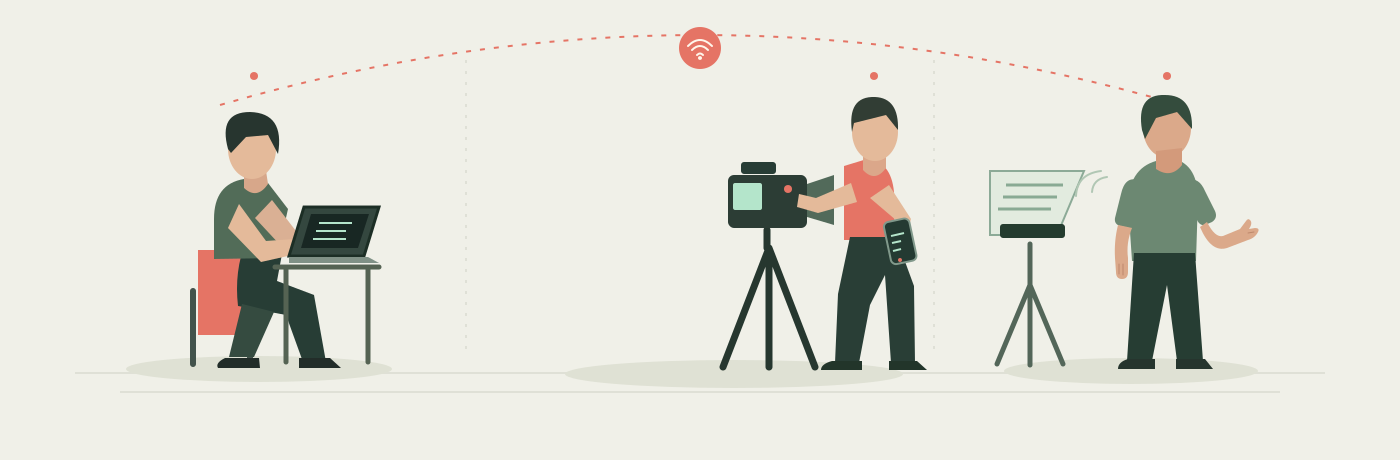
Writes, finds, corrects and runs the script on Mac.
Controls the text’s speed and playback from iPhone. Adds R marks and notes.
Sees a clean reading screen. On a connected display or an optional iPad.
The photographer is already watching the performance. Let them adjust the pace without walking back to the Mac.
INTERACTIVE WORKFLOW ILLUSTRATION
Keep your eyes on the lens.
Stay in the story.
Let the crew set the pace.
The next take starts here.
An illustration of speed control. Actual app screenshots are shown below.
Correct a name. Rewrite the intro. Find the right sentence. Edit in the background while Presenter and mobile screens keep the last published version. Publish when you are ready.
Welcome to today’s conversation.
Welcome to today’s conversation.
The reading screen stays unchanged until you publish.
Interactive illustration. Try the two buttons to see the difference between a draft and published text.
Red M marks at the Mac cursor. Blue R marks at the reading position from the phone. Add an optional note to an R mark. Export a marked script for the next stage of the production.
Search the script, jump between matches and read from the cursor. Import TXT, RTF or Word. Save your script and export marks without cluttering the presenter’s screen.
Open Presenter on the Mac or move it to a connected external display. Choose fullscreen and mirrored text for your prompter setup. iPad is an extra option, not a requirement.
A line to retake? Add an R mark and a short note from your phone. Or place an M mark at the Mac cursor. Bring the log into the next stage of your production.
Read the marker import guide ↗Resolve: EDL timeline markers. Premiere: XML marker-reference sequence. Final Cut Pro: FCPXML marker-reference project.
Match camera clock timecode, recording date and frame rate. This is not automatic camera synchronisation and does not follow clips moved during editing. XML exports create separate reference timelines without footage.
“We built the tool we wanted on our own shoots.”
Great Dane · the team behind GreatTeleprompter
Great Dane makes film, live productions and communication. After years on our own shoots, we knew the moments that needed a better solution: a last-minute correction, a photographer setting the pace, a presenter who needs to stay focused. GreatTeleprompter grew from that experience. For social videos, studio days and location shoots.
 Meet the people behind it↗
The built-in guide opens on a fresh installation. Import a script or paste your words.
Open Presenter. Use the Mac, a connected screen, or an optional iPad reader.
On the same Wi-Fi, scan the phone QR code. Start, stop, change speed and mark from iPhone.
Yes. The browser-based remote supports iPhone and Android. The Mac app must remain running.
No. GreatTeleprompter is a Mac app with its own separate Presenter window. Use it on your Mac or a connected display. The iPad reader is optional.
No. It controls the teleprompter’s playback and speed and can create R marks with optional notes. Camera operation stays with your normal camera setup.
In normal editing, Presenter follows the editor. Choose Edit in background to keep the published text on Presenter and mobile devices unchanged. Publish to Presenter applies your changes when you choose.
Scripts and marks are stored locally on your Mac. Published text is shared with the devices you pair over the local network. The app does not send manuscript analytics to Great Dane.
No. The Mac is the host and must stay on with the app running. Use a trusted network that allows devices to reach each other; guest Wi-Fi may block this.